 By Rahul Vats
 Sometimes, plans change unexpectedly, and you may need to cancel a leave request after submitting it. Fortunately, the HRMS Odisha Portal allows employees to cancel leave requests easily without visiting the office.
However, many users feel confused about when and how they can cancel a leave request, especially if it is already under review. Therefore, this guide explains how to cancel a leave request in HRMS Odisha, step by step, along with rules, tips, and solutions to common issues. Moreover, you will learn how to avoid mistakes during the cancellation process.
Why You May Need to Cancel Leave
Before you proceed, it is important to understand why cancellation may be necessary.
Common Reasons:
- Change in personal plans
- Urgent work requirements
- Incorrect leave application
- Leave applied for the wrong dates
Therefore, HRMS Odisha provides a simple option to cancel requests when needed.
When Can You Cancel a Leave Request?
You cannot cancel at any time. The ability to cancel depends on the status of your request.
Possible Scenarios:
- Pending Leave: You can cancel easily
- Approved Leave: Cancellation may require approval
- Rejected Leave: No need to cancel
Therefore, always check the leave status before proceeding.
Requirements Before Cancelling Leave
Before starting the process, make sure you have the necessary details ready.
You Need:
- HRMS ID or Username
- Password
- Leave request details
- Stable internet connection
In addition, ensure you remember the leave dates and type.
Step-by-Step Guide to Cancel Leave Request in HRMS Odisha
Now, let’s go through the complete process. Follow each step carefully.
Step 1: Visit the Official HRMS Odisha Portal
First, open your browser and visit the official HRMS Odisha website.
Always use the correct portal to avoid security risks. Once the homepage loads, go to the login section.
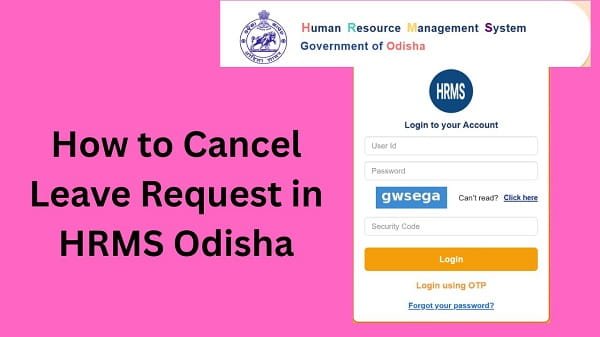
Step 2: Log In to Your Account
Next, enter your login details:
- HRMS ID or Username
- Password
After that, complete OTP verification if required. Then, click on the Login button.
If your details are correct, you will be able to access your dashboard.
Step 3: Go to the Leave Management Section
After logging in, navigate to the Leave Management section.
This section contains all leave-related options.
Step 4: Click on Leave Status or Applied Leave
Now, click on the Leave Status or Applied Leave option.
Here is a list of your leave requests.
Step 5: Select Leave Request to Cancel
Next, choose the leave request you want to cancel.
Make sure you select the correct request.
Step 6: Click on the Cancel Option
After selecting the request, click on the Cancel or Withdraw option.
Important Tips:
- Check details before cancelling
- Ensure it is the correct request
Step 7: Confirm Cancellation
Finally, confirm your action.
After confirmation:
- Your leave request gets cancelled
- Status updates accordingly
As a result, you will no longer remain active.
What Happens After Cancelling Leave?
After cancelling your leave request, the system updates your records.
Key Changes:
- Leave status changes to cancelled
- Leave balance gets restored
- The request is removed from the approval process
Therefore, your leave record remains accurate.
Common Issues While Cancelling Leave (And Fixes)
Although the process is simple, users sometimes face problems. However, you can easily fix them.
1. Cancel Option Not Visible
Solution:
- Check leave status
- Ensure the request is pending
- Contact your department
2. Unable to Cancel Approved Leave
Solution:
- Request approval from the authority
- Contact the HR office
3. Page Not Loading
Solution:
- Refresh the page
- Clear browser cache
- Try another browser
4. Wrong Leave Cancelled
Solution:
- Leave immediately
- Inform your department
Tips for Smooth Leave Cancellation
To avoid issues, follow these simple tips.
Helpful Tips:
- Cancel Leave as early as possible
- Double-check request details
- Monitor leave status regularly
- Avoid last-minute changes
As a result, the process becomes smooth.
Important Rules for Leave Cancellation
While cancelliLeaveave, you should follow certain rules.
Key Points:
- PendiLeave can be cancelled easily
- Approval may require permission
- Follow department guidelines
Therefore, always follow proper procedures.
What to Do If You Cannot Cancel Leave
If you still face issues, you should take further steps.
You Can:
- Contact your department’s HR office
- Inform your reporting officer
- Reach out to HRMS Odisha support
They can help resolve the issue quickly.
Conclusion
Cancelling a leave request on the HRMS Odisha Portal is simple when you follow the correct steps. First, log in to your account, then navigate to the leave section, select your request, and cancel it.
Moreover, by understanding rules and avoiding common mistakes, you can complete the process without issues. In addition, timely cancellation helps maintain accurate records and ensures smooth workflow.
FAQs
Q1. Can I cancel my leave request online?
A: Yes, you can cancel it through the portal.
Q2. Can I cancel approval?
A: Yes, but it may require approval.
Q3. Will Leaveave balance be restored?
A: Yes, after cancellation.
Q4. Can I reapply after cancelling?
A: Yes, you can apply again.
Q5. Why is the cancel option not visible?
A: It may depend on leave status.