 By Rahul Vats
 Forgetting your password can feel stressful, especially when you need urgent access to salary slips, pension records, or employee services. Many users of the IFHRMS Tamil Nadu Portal face this issue at some point. However, the good news is that you can reset your password quickly if you follow the correct process.
Earlier, users often depended on office staff for account recovery. Now, the IFHRMS system offers a faster self-service reset option. Therefore, this guide explains how to reset a forgotten IFHRMS password step by step, along with common problems, quick fixes, security tips, and FAQs. Moreover, if you follow these instructions carefully, you can regain access without delay.
Why Password Reset is Important
Before starting the process, you should understand why quick recovery matters.
Main Benefits:
- Restores account access fast
- Helps download salary slips
- Enables pension and service access
- Protects your account security
- Reduces dependency on manual support
Therefore, knowing the reset process saves time and stress.
Common Reasons Users Forget IFHRMS Password
Many users forget passwords for simple reasons.
Main Causes:
- Rare portal usage
- Changed password recently
- Multiple passwords for different portals
- Saved password removed from browser
- Long gap since last login
As a result, password recovery becomes necessary.
Requirements Before Resetting Password
Before you begin, keep the required details ready.
You Need:
- User ID or Employee ID
- Registered mobile number
- Stable internet connection
- Access to OTP messages
- Updated browser
In addition, keep your new password idea ready.
Step-by-Step IFHRMS Password Reset Guide
Now, let’s go through the complete process carefully.
Step 1: Visit the Official IFHRMS Portal
First of all, open your browser and visit the official IFHRMS Tamil Nadu website.
Always use the official portal. Otherwise, unofficial sites may create security risks.
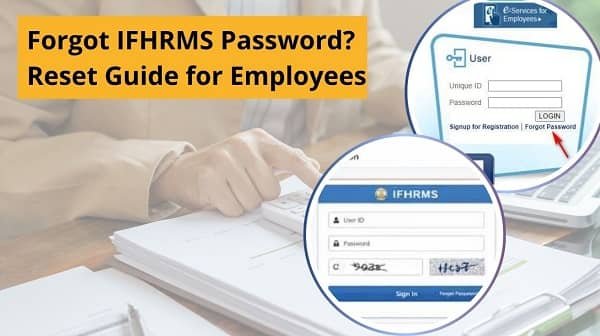
Step 2: Click on Forgot Password
After the login page opens, locate the Forgot Password option.
Usually, this link appears near the password box. Therefore, click it to start recovery.
Step 3: Enter User ID
Next, enter your User ID, Employee ID, or registered login credential.
However, type it carefully because incorrect details may stop the process.
Step 4: Verify Mobile Number
After that, the system checks your registered mobile number.
Then, it sends an OTP for identity verification.
Step 5: Enter OTP Correctly
Now, open your SMS inbox and enter the OTP carefully.
Helpful Tips:
- Use OTP quickly before expiry
- Recheck digits before submit
- Request resend if delayed
As a result, verification completes successfully.
Step 6: Create New Password
Once verification succeeds, the portal asks for a new password.
Strong Password Tips:
- Use letters and numbers
- Add special character if allowed
- Avoid birth date or simple words
- Keep it memorable but secure
Therefore, create a strong password immediately.
Step 7: Confirm and Submit
Re-enter the new password and click submit.
If everything matches, the system updates your password successfully.
As a result, your account becomes ready for login again.
Step 8: Login with New Password
Return to the login page and use your updated password.
Then, enter credentials carefully and access your dashboard.
Therefore, recovery is complete.
Common IFHRMS Password Reset Problems and Fixes
Although the process is simple, users sometimes face issues. However, most problems are easy to solve.
1. OTP Not Received
Fix:
- Check mobile network
- Wait one minute
- Tap resend OTP
- Confirm registered number
2. User ID Not Accepted
Fix:
- Recheck Employee ID
- Remove typing mistakes
- Contact admin if unsure
3. New Password Not Accepted
Fix:
- Use required password format
- Add numbers or symbols
- Avoid old password reuse
4. Website Not Opening
Fix:
- Refresh page
- Check internet
- Try another browser
5. Password Reset Successful But Login Fails
Fix:
- Wait a minute for sync
- Re-enter carefully
- Clear browser cache
Tips to Keep IFHRMS Password Safe
Resetting often can be avoided through good habits.
Helpful Tips:
- Save password securely
- Update password regularly
- Never share credentials
- Use different passwords for other sites
- Keep mobile number active
Therefore, smart habits improve security.
Common Mistakes You Should Avoid
Many users create unnecessary reset problems.
Avoid These Errors:
- Using unofficial portal links
- Typing wrong OTP repeatedly
- Choosing weak passwords
- Forgetting updated password again
- Sharing password with others
As a result, careful usage prevents repeat issues.
What to Do If Reset Option Does Not Work
If the self-service method fails, take the next step.
You Can:
- Contact department administrator
- Reach official support team
- Verify registered mobile details
- Request credential assistance
Therefore, account-specific problems can be solved faster.
Why Fast Recovery Matters for Employees
Quick password recovery helps employees continue essential tasks without delay.
Important Uses:
- Download payslips
- Check salary records
- Access pension services
- Review employee data
- Complete urgent portal tasks
As a result, account access remains important throughout the year.
Conclusion
If you forgot your IFHRMS password, you can reset it easily by following the correct steps. First, visit the official portal, then click Forgot Password, verify OTP, create a new password, and log in again.
Moreover, by understanding common issues and their fixes, you can complete recovery without stress. In addition, secure password habits help prevent future problems.
So, whenever you lose access, use this complete IFHRMS password reset guide and regain your account quickly.
FAQs on IFHRMS Password Reset
Q: What if I forgot my IFHRMS password?
Use the Forgot Password option on the login page.
Q: Is OTP required for reset?
Yes, usually OTP verifies identity.
Q: Can I use the old password again?
Sometimes no, depending on rules.
Q: What if OTP never comes?
Check network and resend OTP.
Q: Can I reset password on mobile?
Yes, through a mobile browser.