 By Rahul Vats
 Applying for Leave becomes much easier when you can complete the process online. The IFHRMS Tamil Nadu Portal, also known as Karuvoolam, helps eligible employees submit leave requests digitally, without relying solely on paper forms or repeated office visits. Instead of waiting for manual file movement, users can apply for, track, and manage Leave from their accounts.
Earlier, many employees relied on handwritten applications and office approvals that often took time. However, the IFHRMS system now offers a faster and more transparent method. Therefore, this guide explains how to apply Leave in IFHRMS Tamil Nadu step by step, along with common issues, quick fixes, useful tips, and FAQs. Moreover, if you follow these instructions carefully, you can submit your leave request smoothly.
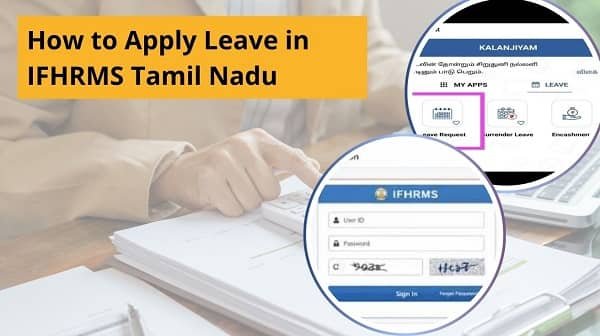
Why Online Leave Application Is Important
Before starting the process, you should understand why digital leave requests matter.
Main Benefits:
- Faster application process
- Easy status tracking
- Less paperwork
- Better approval transparency
- Record maintained online
Therefore, online leave management saves time and effort.
Who Can Apply Leave in IFHRMS?
The portal provides leave services to eligible users.
Usually Eligible Users:
- Tamil Nadu Government employees
- Authorized departmental staff
- Active IFHRMS login users
As a result, valid credentials are necessary.
Requirements Before Applying for Leave
Before beginning, keep these details ready.
You Need:
- User ID or Employee ID
- Password
- Leave dates
- Reason for Leave
- Supporting document if required
- Stable internet connection
In addition, check your leave balance if the portal shows it.
Types of Leave Commonly Available
The exact options may vary by department. However, common leave categories often include:
- Casual Leave
- Earned Leave
- Medical Leave
- Restricted Holiday Leave
- Special Leave (if eligible)
Therefore, choose the correct category carefully.
Step-by-Step Guide to Apply Leave in IFHRMS Tamil Nadu
Now, let’s go through the complete process carefully.
Step 1: Visit the Official IFHRMS Website
First, open your browser and visit the official IFHRMS Tamil Nadu portal.
Always use the official website. Otherwise, unofficial links may create risks.
Step 2: Log in to Your Account
Next, enter your:
- User ID or Employee ID
- Password
- CAPTCHA if required
Then, complete OTP verification if prompted.
As a result, your dashboard opens successfully.
Step 3: Open Leave Management Section
After login, locate the Leave, Employee Services, or Leave Application section.
Usually, the option appears in the dashboard menu. Therefore, navigate carefully.
Step 4: Choose Leave Type
Now, select the correct leave category.
Example:
- Casual Leave
- Earned Leave
- Medical Leave
As a result, the portal applies relevant rules.
Step 5: Select Leave Dates
Next, choose:
- Start date
- End date
- Number of days
Therefore, check dates carefully before proceeding.
Step 6: Enter Reason for Leave
Now, type a clear and brief reason.
Example Reasons:
- Personal work
- Medical reason
- Family function
- Emergency need
As a result, the approving officer better understands your request.
Step 7: Upload Documents If Required
Sometimes, medical or special Leave may require proof.
Possible Documents:
- Medical certificate
- Official letter
- Supporting proof
Therefore, upload clear files if needed.
Step 8: Review and Submit
Finally, review all entered details carefully.
Then, click Submit.
As a result, your leave request has been moved for approval.
How to Check Leave Status After Submission
After applying, you should monitor the request.
Steps:
- Login again
- Open Leave Status section
- Check pending, approved, or rejected status
Therefore, regular tracking prevents confusion.
Common IFHRMS Leave Application Problems and Fixes
Although the process is simple, users sometimes face issues. However, most problems are easy to solve.
1. Leave Option Not Showing
Fix:
- Refresh dashboard
- Re-login account
- Check user permissions
2. Submit Button Not Working
Fix:
- Fill all required fields
- Clear browser cache
- Try another browser
3. Wrong Leave Balance
Fix:
- Refresh the page
- Check previous leave usage
- Contact the office if needed
4. Login Not Working
Fix:
- Recheck credentials
- Reset password
- Retry later
5. Page Loading Slowly
Fix:
- Use a stable internet
- Retry later
- Change browser
Quick Method to Apply Leave Fast
If you need a quick submission, follow this order:
- Login
- Open leave section
- Choose leave type
- Select dates
- Enter reason
- Submit request
Therefore, the process finishes quickly.
Tips for Smooth Leave Approval
If you want faster approval, follow these habits.
Helpful Tips:
- Apply early whenever possible
- Choose the correct leave type
- Enter a clear reason
- Upload proper documents
- Check status regularly
- Avoid last-minute requests
As a result, approvals often move faster.
Common Mistakes Users Should Avoid
Many users create avoidable issues.
Avoid These Errors:
- Choosing the wrong leave category
- Selecting the wrong dates
- Forgetting the reason field
- Ignoring the document requirement
- Applying duplicate requests
- Using unofficial website links
Therefore, careful entry saves time.
Why Leave Records Matter
Maintaining proper leave records helps employees later.
Important Uses:
- Attendance tracking
- Service records
- Leave balance planning
- Future references
- Administrative transparency
As a result, digital records become valuable.
When to Contact Support
If nothing works, seek official help.
Contact Support If:
- Leave section missing
- Requests are stuck for a long time
- Wrong balance repeated
- Technical errors continue regularly
Therefore, official teams can verify account-level issues.
Conclusion
Applying Leave in IFHRMS Tamil Nadu is simple when you follow the correct steps. First, log in securely, then open the leave section, select the leave type, enter the dates, and submit your request.
Moreover, by carefully checking details and regularly tracking the status, you can avoid delays. In addition, online leave management saves time and improves recordkeeping.
Whenever you need to leave, use this complete guide to apply through IFHRMS quickly and confidently.
FAQs on Applying Leave in IFHRMS Tamil Nadu
Q: Can I apply for leave online?
Yes, through the IFHRMS login.
Q: Can I track leave status?
Yes, through the leave status section.
Q: Is document upload required?
Sometimes, depending on the leave type.
Q: Can I use a mobile phone?
Yes, through a mobile browser.
Q: What if the request is pending too long?
Contact your office authority.