 By Rahul Vats
 Downloading your salary slip online saves time and gives you quick access to important financial records. The IFHRMS Tamil Nadu Portal, also known as Karuvoolam, allows government employees to check and download monthly payslips in PDF format at any time. Instead of visiting offices or waiting for printed copies, users can access salary details directly from their account.
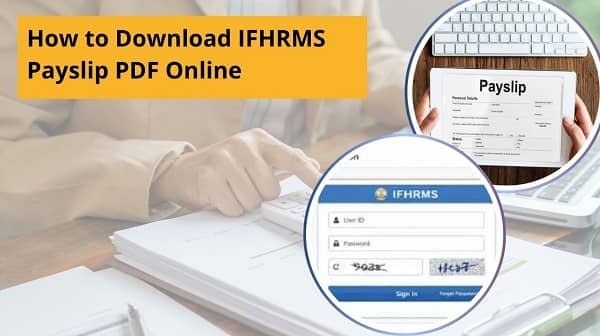
Earlier, many employees depended on manual pay slip distribution. However, the IFHRMS system now offers a faster and more transparent digital process. Therefore, this guide explains how to download IFHRMS payslip PDF online step by step, along with common issues, quick fixes, useful tips, and FAQs. Moreover, if you follow these steps carefully, you can get your payslip within minutes.
Why the IFHRMS Payslip Is Important
Before starting the process, you should understand why payslips matter.
Main Benefits:
- Proof of salary income
- Loan and credit card applications
- Income tax filing support
- Employment record reference
- Personal financial planning
Therefore, downloading payslips regularly is a smart habit.
Who Can Download the IFHRMS Payslip?
The portal provides payslip access to eligible users.
Usually Eligible Users:
- Tamil Nadu Government employees
- Active salary account holders
- Authorized staff with login credentials
As a result, only approved users can access salary records securely.
Requirements Before Downloading Payslip
Before beginning, keep these details ready.
You Need:
- IFHRMS User ID or Employee ID
- Password
- Registered mobile number (if OTP required)
- Stable internet connection
- PDF viewer on mobile or computer
In addition, use an updated browser for smoother access.
Step-by-Step Guide to Download IFHRMS Payslip PDF Online
Now, let’s go through the complete process carefully.
Step 1: Visit the Official IFHRMS Portal
First, open your browser and visit the official IFHRMS Tamil Nadu website.
Always use the official portal. Otherwise, unofficial links may risk your data.
Step 2: Log in to Your Account
Next, enter your:
- User ID or Employee ID
- Password
- CAPTCHA if required
Then, complete OTP verification if prompted.
As a result, your dashboard will open successfully.
Step 3: Open Salary or Payslip Section
After login, locate the Salary, Payroll, or Payslip section.
Usually, the option appears on the dashboard menu. Therefore, navigate carefully.
Step 4: Select Month and Year
Now, choose the salary period for which you need the payslip.
Example:
- Month: March
- Year: 2026
As a result, the portal loads the correct salary record.
Step 5: View Payslip Details
Before downloading, review the displayed details.
Check:
- Employee name
- Designation
- Basic pay
- Allowances
- Deductions
- Net salary
Therefore, verification helps avoid confusion later.
Step 6: Click Download PDF
Now, click the Download, Print, or PDF button. The system then generates your payslip file.
As a result, the PDF gets saved on your device.
Step 7: Open and Save Securely
Finally, open the file and store it safely.
Helpful Tips:
- Rename the file clearly
- Save the month-wise folder
- Keep a backup copy
Therefore, future access becomes easier.
Common IFHRMS Payslip Download Problems and Fixes
Although the process is simple, users sometimes face issues. However, most problems are easy to solve.
1. Payslip Not Showing
Fix:
- Select the correct month and year
- Refresh page
- Wait for the salary processing update
2. Login Not Working
Fix:
- Recheck password
- Reset password if needed
- Clear browser cache
3. PDF Not Downloading
Fix:
- Check the internet connection
- Disable pop-up blocker
- Try another browser
4. Blank PDF File
Fix:
- Download again
- Update the PDF reader
- Use a desktop browser
5. OTP Not Received
Fix:
- Check the network signal
- Wait briefly
- Resend OTP once
Quick Download Order (Best Method)
If you need fast access, follow this order:
- Login
- Open the payslip section
- Choose month
- Verify details
- Download PDF
- Save securely
Therefore, you can complete the process in minutes.
Tips for Smooth Payslip Download
If you download payslips regularly, follow these habits.
Helpful Tips:
- Download every month
- Keep the browser updated
- Use a stable internet
- Store PDFs in folders
- Verify salary details each month
- Use the official website only
As a result, salary record management becomes easier.
Common Mistakes Users Should Avoid
Many users create unnecessary problems.
Avoid These Errors:
- Using the wrong login credentials
- Selecting the wrong month
- Forgetting to save the file
- Using unofficial portal links
- Ignoring the deductions section
- Sharing the downloaded payslip publicly
Therefore, careful handling protects your records.
Why Monthly Payslip Tracking Matters
Regular payslip reviews help users manage their finances better.
Important Uses:
- Detect deduction errors
- Confirm salary credit
- Maintain loan documents
- Track annual income
- Prepare tax planning
As a result, a monthly review is highly beneficial.
What If Old Payslips Are Needed?
Sometimes, users need previous salary slips.
Solution:
- Select an earlier month and year
- Download individually
- Save the yearly archive folder
Therefore, old records stay organized.
Conclusion
Downloading your IFHRMS payslip PDF online is simple when you follow the correct steps. First, log in to the portal, then open the payslip section, select the required month, and download the file securely.
Moreover, by understanding common problems and their fixes, you can easily avoid delays. In addition, monthly payslip downloads help maintain financial records and salary proof.
Whenever you need salary details, use this comprehensive guide to download your IFHRMS payslip quickly and safely.
FAQs on IFHRMS Payslip PDF Download
Q: Can I download the IFHRMS payslip online?
Yes, after logging in to your account.
Q: Is the payslip available in PDF format?
Yes, usually downloadable as a PDF.
Q: What if the payslip is missing?
Check the month selection or processing status.
Q: Can I use a mobile to download a payslip?
Yes, through a mobile browser.
Q: Is a payslip useful for loans?
Yes, it often serves as proof of income.