 By Rahul Vats
 Getting locked out of your IFHRMS Tamil Nadu Portal account can feel stressful, especially when you need urgent access to salary slips, pension records, or employee services. Usually, account lock issues happen after repeated wrong password attempts, security checks, or temporary system restrictions. However, the good news is that most locked account problems are easy to solve.
Earlier, users often had to wait for office support to restore access. Now, you can recover many accounts quickly by following the correct steps. Therefore, this guide explains why IFHRMS accounts get locked and how to recover them step by step, along with prevention tips, common mistakes, and FAQs. Moreover, if you follow these solutions carefully, you can regain access without delay.
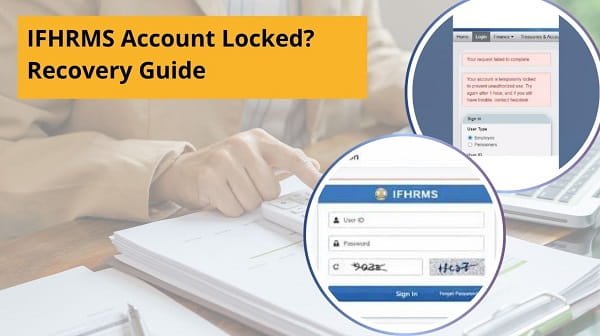
Why Does the IFHRMS Account Get Locked
Before starting recovery, you should understand the common reasons behind this issue.
Main Reasons:
- Wrong password entered multiple times
- Repeated invalid login attempts
- Suspicious login activity detected
- Old password used repeatedly
- Browser session conflicts
- Temporary security restriction
Therefore, the portal locks accounts mainly to protect user data.
Signs That Your IFHRMS Account Is Locked
Many users are unsure whether their accounts are truly locked. Usually, the system gives warning signs.
Common Signs:
- Login denied repeatedly
- “Account Locked” message shown
- The correct password still fails
- OTP verification blocked
- Access is delayed after many attempts
As a result, these signs indicate that recovery steps are needed.
1. Wait for the Temporary Lock Period
First of all, many account locks are temporary.
If you entered the wrong password several times, the system may block access for a short time.
Quick Fix:
- Wait 15 to 30 minutes
- Avoid repeated login attempts
- Retry later calmly
Therefore, patience often solves temporary locks.
2. Use the Forgot Password Option
If the lock is due to incorrect credentials, reset the password immediately.
Steps:
- Open the login page
- Click Forgot Password
- Enter User ID
- Verify OTP
- Create a new password
As a result, a password reset often removes access issues.
3. Clear Browser Cache and Cookies
Sometimes, old browser sessions create login conflicts.
Quick Fix:
- Open browser settings
- Clear cache and cookies
- Restart browser
- Login again
Therefore, fresh browser data may quickly restore access.
4. Try Another Browser or Device
Sometimes, the issue occurs only in one browser.
Better Options:
- Use Chrome
- Use Firefox
- Use Edge
- Try a mobile browser
As a result, switching devices can bypass local issues.
5. Verify User ID Carefully
Wrong User ID entries can also trigger security blocks.
Quick Fix:
- Recheck Employee ID
- Compare with official records
- Remove extra spaces
Therefore, accurate login details are essential.
6. Check OTP Verification Problems
Sometimes, the account appears to be locked when OTP verification fails repeatedly.
Quick Fix:
- Check the mobile network
- Wait for OTP
- Use the latest OTP only
- Request a resend once
As a result, successful verification can restore access.
7. Contact Official Support or Department Admin
If none of the above methods work, request authorized help.
Contact Support If:
- Account stays locked for hours
- Password reset fails
- The correct login is still blocked
- Mobile number changed
Therefore, official support can inspect account-specific issues.
Quick Recovery Order (Best Method)
If your IFHRMS account is locked, follow this order:
- Wait for the temporary lock period
- Reset password
- Clear browser cache
- Try another browser
- Recheck User ID
- Verify OTP properly
- Contact support
Therefore, this sequence quickly solves most recovery cases.
How to Create a Strong New Password
After recovery, choose a better password.
Good Password Tips:
- Use letters and numbers
- Add a special character if allowed
- Avoid simple names
- Avoid birth dates
- Keep it memorable but secure
As a result, stronger passwords reduce the likelihood of future lockouts.
Common Mistakes Users Should Avoid
Many users accidentally worsen the problem.
Avoid These Errors:
- Repeating the wrong password many times
- Guessing the password continuously
- Ignoring Caps Lock
- Using unofficial login links
- Sharing credentials with others
- Requesting OTP repeatedly
Therefore, careful login habits prevent lock issues.
Tips to Avoid Future Account Lock
For smooth access, follow these simple habits.
Helpful Tips:
- Save password securely
- Update the password carefully
- Type credentials slowly
- Use the official website only
- Keep your mobile number active
- Log out properly after use
As a result, future login becomes easier.
Why Fast Recovery Matters
A working IFHRMS account helps users complete essential monthly tasks.
Important Uses:
- Download payslips
- Check salary details
- Access pension records
- Review employee data
- Use official services quickly
Therefore, quick recovery saves time and stress.
What if the mobile number changed?
Sometimes recovery fails because the OTP is sent to an old number.
Solution:
- Contact department administrator
- Request mobile update
- Verify identity officially
As a result, future recovery becomes easier.
Conclusion
If your IFHRMS account is locked, you can recover it quickly by following the right steps. First, wait for the temporary lock period, then reset your password, clear browser issues, and verify OTP correctly. After that, if access still fails, contact official support.
Moreover, by avoiding repeated failed attempts and adopting secure login practices, you can prevent future lockouts. In addition, a strong password improves long-term account safety.
Whenever your IFHRMS account is locked, use this recovery guide to regain access with confidence.
FAQs on IFHRMS Account Locked
Q: Why did my IFHRMS account get locked?
Usually, it’s because of repeated wrong login attempts.
Q: How long does a temporary lock last?
It depends on system settings, but short waits often help.
Q: Can a password reset unlock the account?
Yes, in many cases.
Q: What if the OTP does not arrive?
Check the network and resend once.
Q: Who can help with permanent lock issues?
Your department admin or official support.