 By Rahul Vats
 Forgetting your password on the HRMS Bihar Portal can feel stressful, especially when you need quick access to salary slips, leave details, or service records. However, the good news is that you can reset your password within minutes if you follow the correct steps.
In this detailed guide, you will learn how to reset your HRMS Bihar password step by step, along with practical tips, common issues, and solutions. So, instead of worrying, let’s walk through the process simply and clearly.
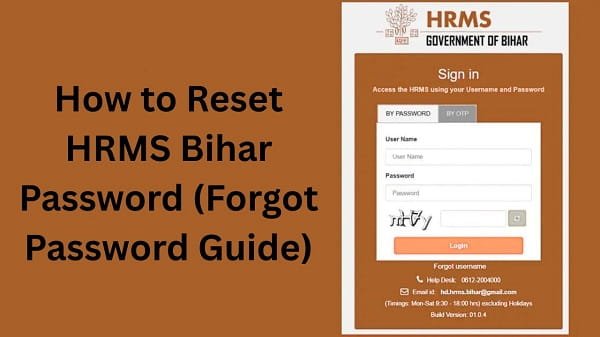
Why You May Need to Reset Your Password
Before diving into the steps, it helps to understand when you should reset your password. In most cases, users face this issue due to:
- Forgotten password
- Account security concerns
- Password expiry
- Multiple failed login attempts
Therefore, resetting your password ensures both access and account safety.
Step-by-Step Process to Reset HRMS Bihar Password
Now, let’s go through the exact steps you need to follow. Make sure you complete each step carefully to avoid errors.
Step 1: Visit the Official HRMS Bihar Portal
First, open your browser and go to the official HRMS Bihar website. Always use the correct and official URL to avoid security risks.
Once the homepage loads, look for the Login section.
Step 2: Click on “Forgot Password”
Next, locate the “Forgot Password” option below the login fields. Click on it to start the password reset process.
This option lets you recover your account without your old password.
Step 3: Enter Required Details
After that, you need to provide your registered details. Usually, the system asks for:
- Username or Employee ID
- Registered mobile number or email
Make sure you enter the correct information. Otherwise, the system will not proceed.
Step 4: Verify Using OTP
Once you submit your details, you will receive an OTP (One-Time Password) on your registered mobile number.
Then:
- Enter the OTP correctly
- Avoid refreshing the page during verification
If you do not receive the OTP immediately, wait for a few seconds before requesting a new one.
Step 5: Create a New Password
After successful verification, you will be redirected to the password reset page.
Now:
- Enter a new password
- Confirm the password
Make sure your new password is strong and secure. For example, include:
- Uppercase and lowercase letters
- Numbers
- Special characters
As a result, your account becomes more secure.
Step 6: Log In with New Password
Finally, return to the login page and enter your new credentials.
If everything is correct, you will successfully log in to your HRMS account.
Tips to Create a Strong Password
While resetting your password, you should focus on security. Therefore, follow these tips:
- Use at least 8–12 characters
- Avoid common words like “password123”
- Do not reuse old passwords
- Combine letters, numbers, and symbols
In addition, try to update your password regularly to help keep your account safe.
Common Problems During Password Reset (And Fixes)
Sometimes, users face issues during the reset process. However, you can solve most of them بسهولة.
1. OTP Not Received
This is one of the most common problems.
Solution:
- Check your network signal
- Ensure your registered mobile number is active
- Wait for a minute before requesting a new OTP
2. Incorrect Details Error
If the system shows an error, you may have entered the wrong information.
Solution:
- Recheck your username or employee ID
- Use the same mobile number registered with HRMS
3. Page Not Loading
Sometimes, the reset page may not load properly.
Solution:
- Clear browser cache and cookies
- Switch to another browser
- Check your internet connection
4. Account Locked
After multiple failed attempts, your account may get locked.
Solution:
- Wait for some time before trying again
- Contact your department if the issue continues
What to Do If You Still Cannot Reset Your Password
If none of the steps work, you should seek official help.
Contact Options:
- Reach out to your department’s HR office
- Contact HRMS Bihar technical support
In such cases, they can verify your identity and help restore access.
Best Practices to Avoid Future Issues
While resetting your password solves the problem, preventing it is even better.
Therefore, follow these best practices:
- Save your password securely
- Use a password manager if needed
- Avoid sharing login details with others
- Log out after using public devices
By doing this, you reduce the chances of future login problems.
FAQs on HRMS Bihar Password Reset
Q1. How can I reset my HRMS Bihar password?
Ans: You can reset it using the “Forgot Password” option on the login page.
Q2. What if I do not receive the OTP?
Ans: Check your network and registered mobile number, then request a new OTP.
Q3. Can I reset my password without a mobile number?
Ans: Usually, you need your registered mobile number. Otherwise, contact your department.
Q4.. How long does the reset process take?
Ans: The process usually takes only a few minutes.
Q5. Is it safe to reset my password online?
Ans: Yes, as long as you use the official HRMS Bihar portal.