 By Rahul Vats
 Frustrating login issues on the IFHRMS Tamil Nadu Portal can be especially frustrating when you need urgent access to salary slips, pension details, or employee services. Many users experience this problem due to incorrect passwords, browser issues, network errors, or temporary server delays. However, the good news is that most login problems are easy to solve.
Earlier, users often depended on office support for every access issue. Now, you can fix many problems yourself within minutes. Therefore, this guide explains why the IFHRMS login is not working, offers 7 quick fixes to fix it fast, provides prevention tips, addresses common mistakes, and answers FAQs. Moreover, if you follow these steps carefully, you can quickly restore access.
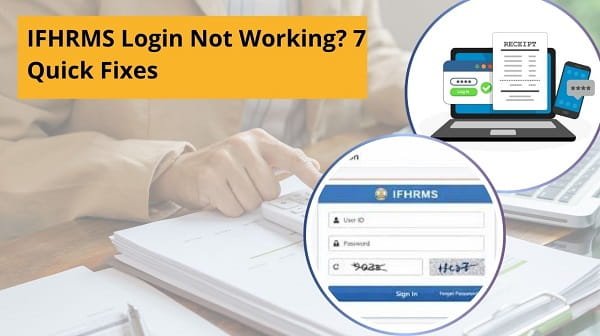
Why Does the IFHRMS Login Stop Working
Before applying solutions, you should understand the common causes.
Main Reasons:
- Wrong User ID or password
- OTP issue
- Browser cache problem
- Slow internet connection
- Server maintenance
- Account locked after wrong attempts
- Outdated browser
Therefore, once you identify the reason, solving the issue becomes easier.
1. Recheck User ID and Password
First, verify your login credentials carefully.
Many users type the wrong password or use an old password. Sometimes, Caps Lock also creates issues.
Quick Fix:
- Re-enter User ID carefully
- Type the password slowly
- Turn off Caps Lock
- Avoid extra spaces
As a result, login may work immediately.
2. Use the Forgot Password Option
If you cannot remember your password, reset it directly.
Steps:
- Click Forgot Password
- Enter User ID
- Complete OTP verification
- Create a new password
Therefore, a password reset often solves repeated login failures.
3. Check OTP Problems
Sometimes, the login fails because the OTP does not arrive on time.
Quick Fix:
- Check the mobile network
- Wait 1–2 minutes
- Tap resend OTP
- Ensure the registered number is active
Moreover, restart your phone if messages are delayed repeatedly.
4. Clear Browser Cache and Cookies
Stored browser data can block login pages or create session errors.
Quick Fix:
- Open browser settings
- Clear cache and cookies
- Restart browser
- Login again
As a result, old corrupted data stops interfering.
5. Try Another Browser or Device
Sometimes, the issue comes from the browser itself.
Better Options:
- Use Chrome
- Use Edge
- Use Firefox
- Try a mobile browser
Therefore, switching browsers often quickly fixes loading or login button problems.
6. Check Internet Connection
A weak connection may cause page loading or OTP verification to fail.
Quick Fix:
- Restart the Wi-Fi router
- Switch to mobile data
- Move to a better signal area
- Retry login after reconnecting
As a result, stable internet improves portal access immediately.
7. Wait if the server is busy or Under Maintenance
Sometimes, the IFHRMS portal itself may be slow or temporarily unavailable.
Signs:
- Website loads slowly
- The login page freezes
- An error appears for many users
Quick Fix:
- Wait for some time
- Retry later
- Try during non-peak hours
Therefore, patience may solve the issue without any account changes.
Quick Summary Table
If Login Fails, Try This Order:
- Check password
- Reset password
- Verify OTP
- Clear browser cache
- Change browser
- Check internet
- Retry later
As a result, most users regain access quickly.
Common Mistakes Users Should Avoid
Many login issues stem from simple errors. Therefore, avoid these mistakes.
Avoid These:
- Entering the wrong password repeatedly
- Using unofficial website links
- Ignoring browser updates
- Sharing login credentials
- Closing the OTP screen early
- Trying too many times quickly
As a result, you reduce future login failures.
Tips for Smooth IFHRMS Login
If you want regular trouble-free access, follow these habits.
Helpful Tips:
- Save the official website bookmark
- Update password safely
- Keep your registered mobile active
- Use the latest browser version
- Log in during low traffic hours
- Store credentials securely
Therefore, preventive steps save time later.
What to Do If the Account Gets Locked
Repeated failed attempts may temporarily lock your account.
You Can:
- Wait for the lock period to end
- Use the forgot password option
- Contact department admin if needed
Moreover, do not continue random attempts.
When to Contact Support
If none of the fixes work, you may need official help.
Contact Support If:
- The correct password still fails
- OTP never arrives
- Account remains locked
- Dashboard does not open after login
Therefore, support teams can check account-specific issues.
Why Quick Access Matters
A working IFHRMS login helps users complete routine tasks faster.
Main Benefits:
- Download salary slips quickly
- Check pension records
- Access employee data
- Save office visit time
- Manage services online
As a result, login access becomes very important for regular users.
Conclusion
If your IFHRMS login is not working, you can solve the issue quickly by following the right steps. First, verify your credentials, then check the OTP, clear your browser cache, and test your internet connection. After that, if the portal still fails, wait and retry later.
Moreover, by avoiding common mistakes and using preventive tips, you can reduce future login problems. In addition, regular secure login habits make account access smoother.
Whenever the IFHRMS login stops working, use these 7 quick fixes to restore access in minutes.
FAQs on IFHRMS Login Not Working
Q: Why is the IFHRMS login not working?
Usually, it’s because of a wrong password, an OTP issue, or a browser problem.
Q: How can I fix the IFHRMS login fast?
Check password, clear cache, and retry.
Q: What if OTP is not received?
Wait, check the network, and resend the OTP.
Q: Can a browser cause login issues?
Yes, outdated browsers often create problems.
Q: What if my account is locked?
Wait or reset password.