 By Rahul Vats
 Forgetting your login password can feel stressful, especially when you need immediate access to salary details, leave applications, or service records. Many employees face this issue while using the HRMS of Indian Railways. However, you can reset your password quickly by following a few simple steps.
Therefore, this guide will explain how to reset your HRMS Railway password step by step, along with common issues, solutions, and tips to avoid this problem in the future. Moreover, you will learn how to regain access without any delay.
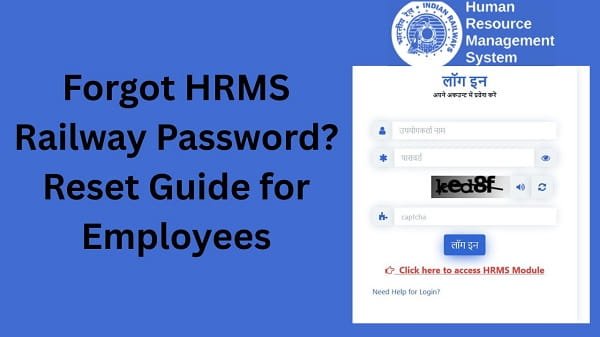
Why You May Forget HRMS Railway Password
Before fixing the issue, you should understand why this problem occurs.
Common Reasons:
- Using multiple passwords for different accounts
- Not saving login credentials
- Long gap between logins
- Complex password combinations
Therefore, forgetting passwords is a common issue.
Requirements Before Resetting Password
Before starting the reset process, make sure you have the required details ready.
You Need:
- HRMS ID or Username
- Registered mobile number
- Access to OTP
- Stable internet connection
In addition, ensure your mobile number is active.
Step-by-Step Guide to Reset HRMS Railway Password
Now, let’s go through the complete process. Follow each step carefully.
Step 1: Visit the Official HRMS Railway Portal
First, open your browser and visit the official HRMS Railway website.
Always use the correct portal to avoid security risks. Once the homepage loads, go to the login section.
Step 2: Click on “Forgot Password”
Next, click on the Forgot Password option available on the login page.
This option allows you to reset your password easily.
Step 3: Enter Your HRMS ID
Now, enter your HRMS ID or username.
Make sure you enter the correct details.
Step 4: Verify OTP
After entering your ID, you will receive an OTP on your registered mobile number.
Important Tips:
- Enter OTP correctly
- Do not delay
- Avoid multiple requests
As a result, verification will complete successfully.
Step 5: Create New Password
Next, create a new password.
Password Tips:
- Use a strong password
- Include letters, numbers, and symbols
- Avoid simple or common passwords
Therefore, your account remains secure.
Step 6: Confirm and Submit
Finally, confirm your new password and click on the Submit button.
After submission:
- Your password gets updated
- You can log in with new credentials
As a result, your account access is restored.
What to Do After Resetting the Password
After resetting your password, you should take a few steps.
Recommended Actions:
- Save your new password securely
- Log in immediately to verify
- Avoid sharing your credentials
Therefore, your account remains safe.
Common Issues While Resetting Password (And Fixes)
Although the process is simple, users sometimes face problems. However, you can easily fix them.
1. OTP Not Received
Solution:
- Check the network signal
- Verify mobile number
- Wait before requesting again
2. Invalid HRMS ID
Solution:
- Recheck your ID
- Contact your department
3. Password Not Accepted
Solution:
- Follow password rules
- Use a strong combination
4. Page Not Loading
Solution:
- Check the internet connection
- Clear browser cache
- Try another browser
Tips to Avoid Forgetting Password
While resetting is easy, prevention is better.
Helpful Tips:
- Save password securely
- Use a password manager
- Create memorable passwords
- Update your password regularly
As a result, you can avoid future issues.
Common Mistakes You Should Avoid
Many users create problems unknowingly.
Avoid These:
- Entering the wrong OTP
- Using weak passwords
- Requesting OTP multiple times
- Ignoring password rules
Therefore, careful handling improves success.
What to Do If the Password Reset Does Not Work
If you still cannot reset your password, take further steps.
You Can:
- Contact your department’s HR office
- Verify your account details
- Reach out to HRMS Railway support
They can help resolve the issue quickly.
Importance of Password Security
Your password plays a key role in protecting your account.
Key Benefits:
- Protects personal information
- Prevents unauthorized access
- Ensures safe login
Therefore, always use secure passwords.
Conclusion
If you forget your password on the HRMS Indian Railways, you can reset it quickly by following the simple steps. First, use the “Forgot Password” option, then verify OTP, and finally create a new password.
Moreover, understanding common issues helps you avoid delays. In addition, following security tips ensures a safe, smooth experience.
Whenever you face password issues, use this guide to reset it quickly and continue using HRMS Railway without interruption.
FAQs
Q1. How can I reset my HRMS password?
A: Use the “Forgot Password” option on the login page.
Q2. What details are required?
A: You need HRMS ID and OTP.
Q3. Can I reset my password using my mobile?
A: Yes, you can use a mobile browser.
Q4. What if OTP is not received?
A: Check the network and mobile number.
Q5. Who should I contact for help?
A: Contact your department or HRMS support.