 By Rahul Vats
 Seeing the “Invalid Credentials” message when trying to access the Karuvoolam/IFHRMS Tamil Nadu Portal can be frustrating, especially when you need urgent access to payslips, pension details, or employee services. Usually, this error appears when the system cannot match your login details with registered records. However, in many cases, the issue is simple and easy to fix.
Earlier, users often had to wait for office support to resolve login problems; now you can solve most credential errors within minutes. Therefore, this guide explains why Karuvoolam shows the “Invalid Credentials” error, how to fix it step by step, and provides prevention tips, common mistakes, and FAQs. Moreover, if you follow these solutions carefully, you can quickly restore access.
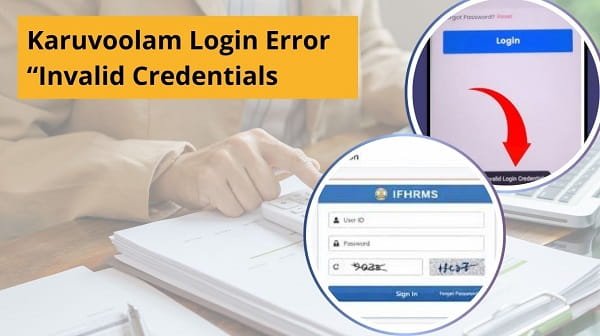
What Does “Invalid Credentials” Mean?
Before applying fixes, you should understand the meaning of this message.
It Usually Means:
- Wrong User ID entered
- Wrong password entered
- Password recently changed
- Old saved login details used
- Temporary account issue
Therefore, the portal blocks access to protect your account.
Why Karuvoolam Shows This Error
Several reasons can trigger this message. However, most causes are common and manageable.
Main Reasons:
- Typing mistakes
- Caps Lock enabled
- Wrong employee ID
- Old password remembered incorrectly
- Browser auto-fill using an outdated password
- Account temporarily locked
- Server sync delay
As a result, identifying the real reason helps you solve it faster.
1. Recheck User ID Carefully
First, verify your User ID or Employee ID.
Many users type one wrong digit or letter. Consequently, the system rejects the login instantly.
Quick Fix:
- Re-enter User ID slowly
- Compare with official records
- Remove spaces before or after text
Therefore, correct identification is the first solution.
2. Re-enter Password Correctly
Next, check your password carefully.
Sometimes users type the correct password incorrectly due to speed or keyboard settings.
Quick Fix:
- Turn off Caps Lock
- Type manually instead of auto-fill
- Avoid extra spaces
- Check special characters carefully
As a result, many login errors disappear immediately.
3. Reset Password If Needed
If you still cannot log in, use the reset option.
Steps:
- Click Forgot Password
- Enter User ID
- Verify OTP
- Create a new password
- Login again
Therefore, password reset is often the fastest fix.
4. Remove Browser Auto-Fill Data
Old saved passwords in browsers often create problems.
Quick Fix:
- Delete saved login credentials
- Clear browser auto-fill data
- Type credentials manually
As a result, outdated passwords no longer interfere.
5. Clear Cache and Cookies
Sometimes, the browser stores old session data.
Quick Fix:
- Open browser settings
- Clear cache and cookies
- Restart browser
- Retry login
Therefore, refreshed browser data improves access.
6. Check Account Lock Status
Repeated wrong attempts may temporarily lock your account.
Signs:
- The correct password still fails
- Multiple attempts have been made recently
Quick Fix:
- Wait for some time
- Reset password
- Retry later
As a result, temporary lock issues usually resolve.
7. Try Another Browser or Device
Sometimes, the issue comes from your device setup.
Better Options:
- Use Chrome
- Use Edge
- Use Firefox
- Try a mobile browser
Therefore, changing the device or browser often resolves the issue quickly.
8. Wait for Server Sync or Maintenance
At times, the portal may face temporary backend delays.
Signs:
- The website is slow for everyone
- Login page freezing
- Credentials correct, but access denied
Quick Fix:
- Wait some time
- Retry later
- Use non-peak hours
As a result, system-side issues may resolve automatically.
Quick Fix Order (Best Method)
If you need fast recovery, follow this order:
- Check User ID
- Re-enter password
- Disable auto-fill
- Reset password
- Clear cache
- Try another browser
- Wait and retry later
Therefore, this sequence solves most login cases quickly.
Common Mistakes Users Should Avoid
Many users repeat simple errors unknowingly.
Avoid These:
- Using unofficial website links
- Entering the password too quickly
- Repeating wrong attempts many times
- Trusting browser auto-fill unquestioningly
- Sharing login credentials
- Ignoring password updates
As a result, avoiding these mistakes reduces future issues.
Tips for Smooth Karuvoolam Login
If you want regular trouble-free access, follow these habits.
Helpful Tips:
- Save the official website bookmark
- Keep the password secure
- Update your browser regularly
- Keep your mobile number active
- Log in calmly and carefully
- Change password when required
Therefore, prevention saves time later.
When to Contact Support
If nothing works, you may need official help.
Contact Support If:
- Correct credentials still fail
- Password reset does not work
- OTP never arrives
- Account stays locked
Therefore, authorized support can inspect account-specific problems.
Why Fast Login Access Matters
Reliable access helps users complete essential monthly tasks.
Important Uses:
- Download payslips
- Check salary records
- Access pension details
- Review employee data
- Complete official requests
As a result, solving login errors quickly is important.
Conclusion
If you face the Karuvoolam Login Error “Invalid Credentials”, you can solve it quickly by following the right steps. First, verify your User ID and password, then clear browser issues, and reset your password if needed. After that, if the portal still fails, wait and retry later.
Moreover, by avoiding common mistakes and following secure login habits, you can reduce future errors. In addition, regular account maintenance makes access smoother.
Whenever this message appears, use these proven fixes to regain access to your IFHRMS account quickly.
FAQs on Karuvoolam Invalid Credentials Error
Q: Why does Karuvoolam say Invalid Credentials?
A: Usually because the User ID or password is incorrect.
Q: Can old saved passwords cause this error?
A: Yes, browser auto-fill often causes login failure.
Q: What if I forgot my password?
A: Use the Forgot Password option.
Q: Can an account lock cause this message?
A: Yes, repeated wrong attempts may trigger it.
Q: Can I log in from mobile?
A: Yes, use a mobile browser.